Paintings
A world-class art collection that fits in your pocket. Browse thousands of masterpieces from history's greatest artists — beautifully presented, endlessly explorable, and always with you.
Download on the App Store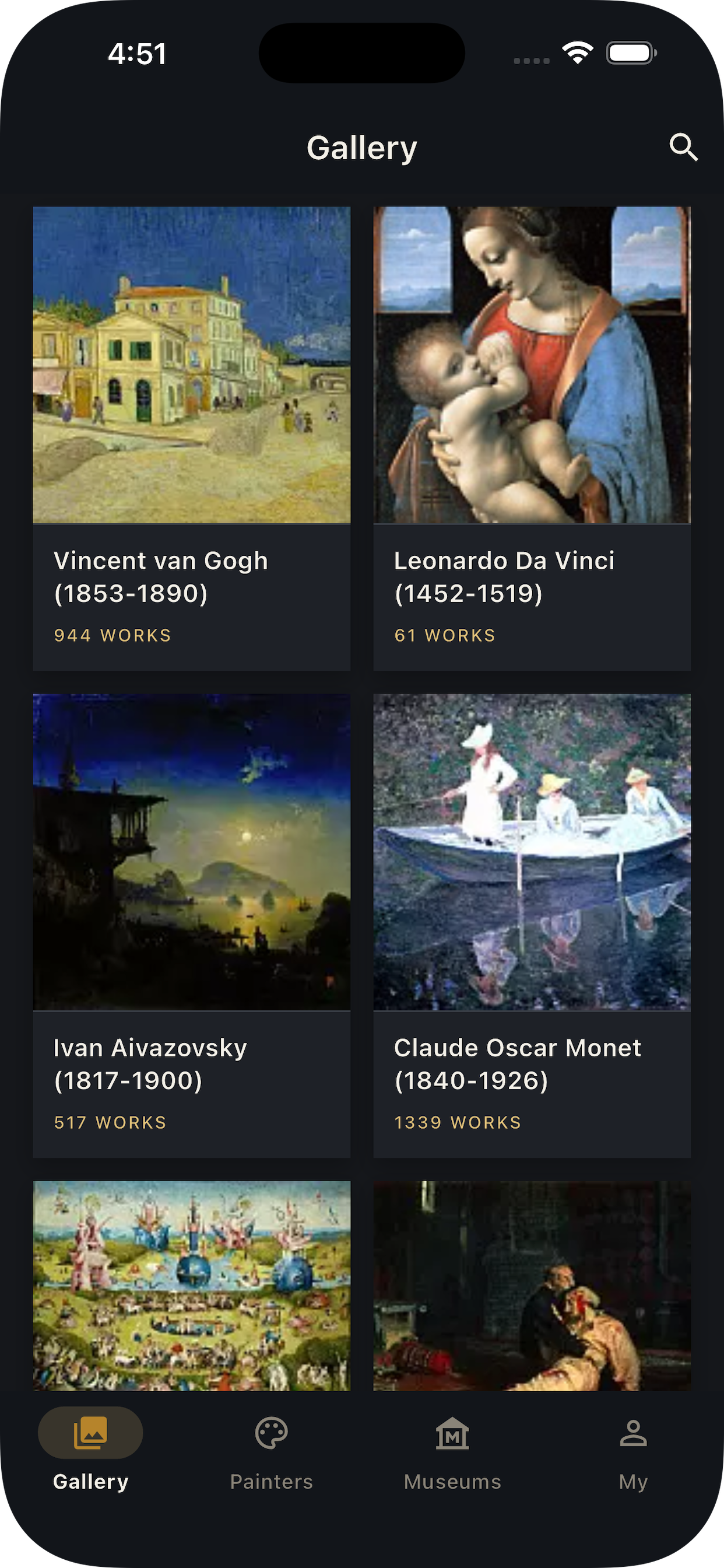
A gallery, always open
Everything you love about visiting a museum — the discovery, the detail, the stories — reimagined for your phone.
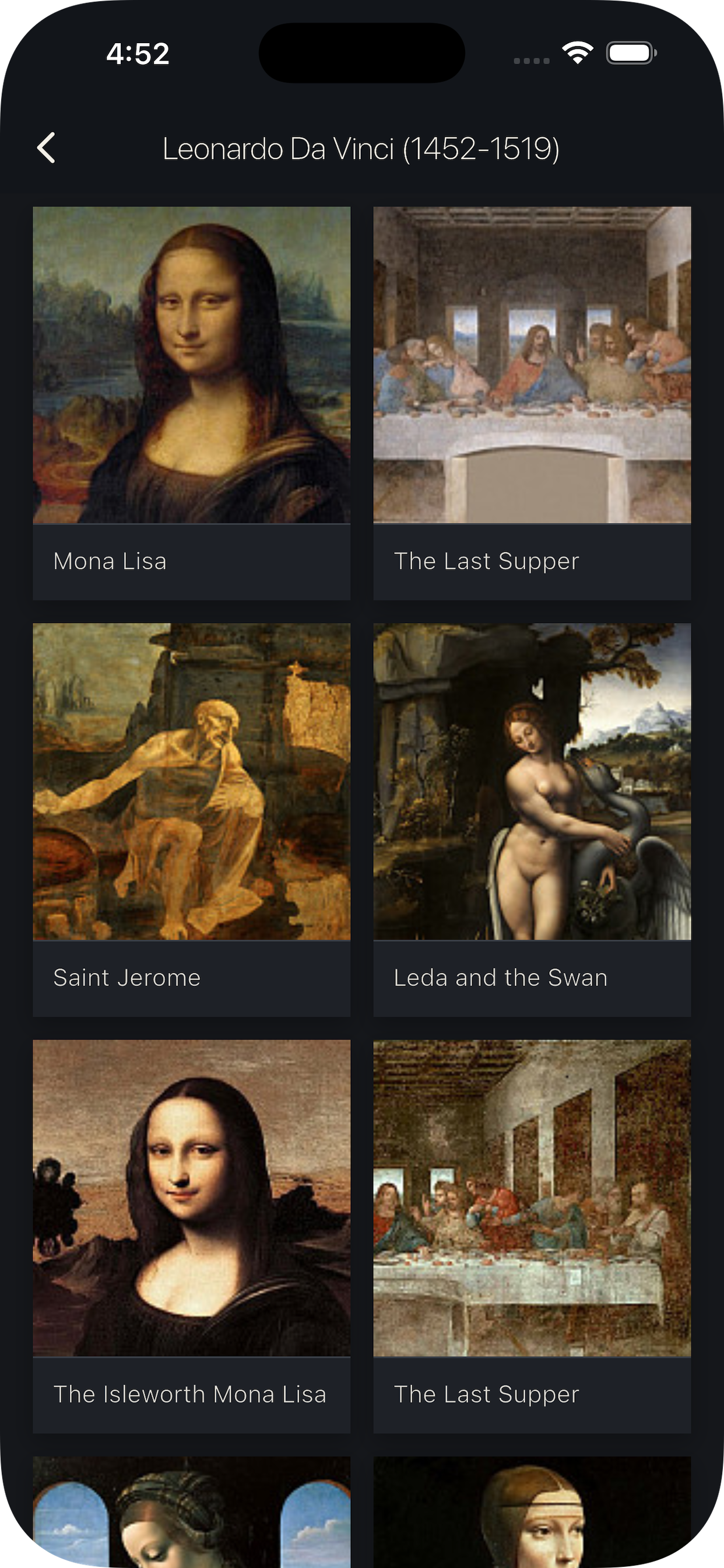
Explore great art
Browse an extensive collection organized by artist, museum, and album. From the old masters to hidden gems.
See every detail
Open any artwork in stunning high resolution and pinch to zoom in on every brushstroke and texture.
Read the story
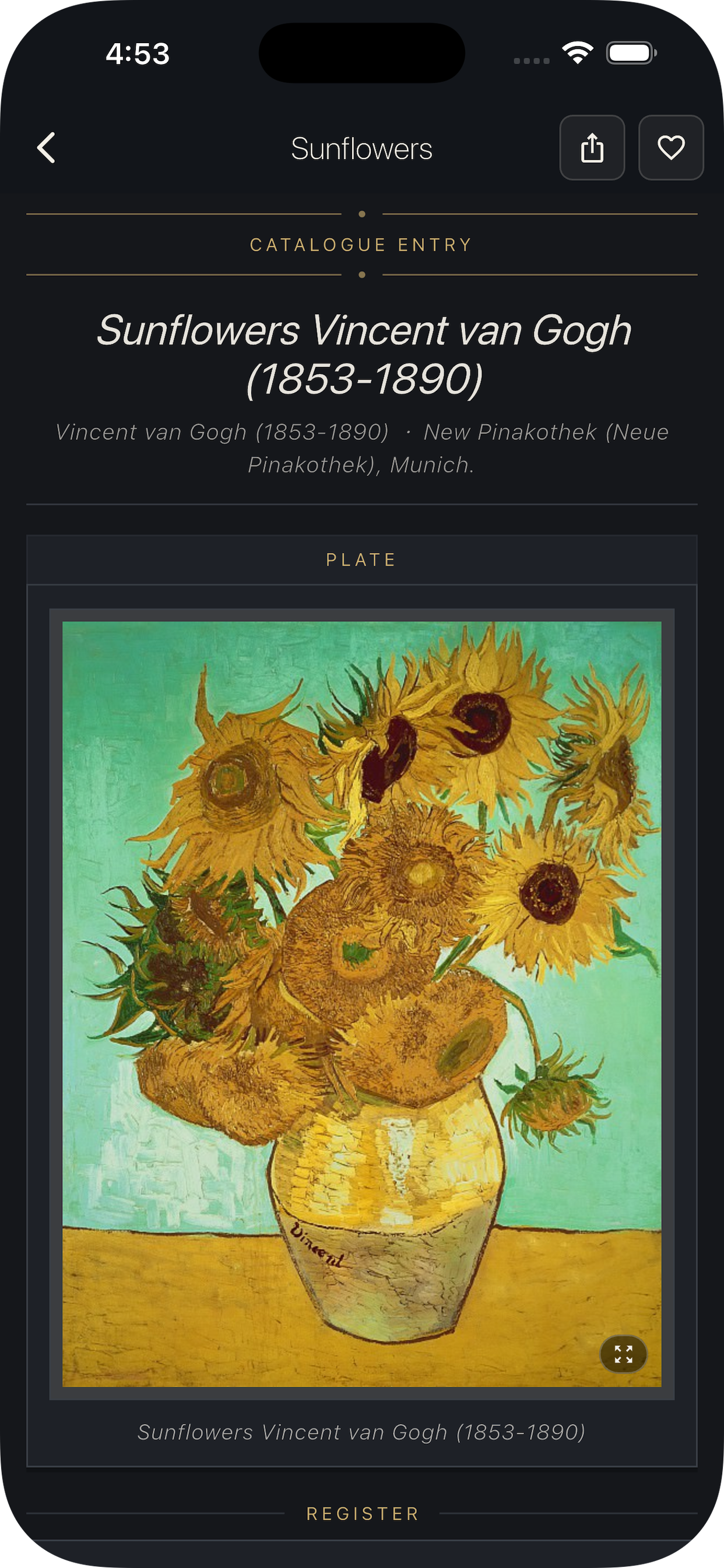
Each piece includes a catalogue entry — artist, date, collection, and a curator's note for context.
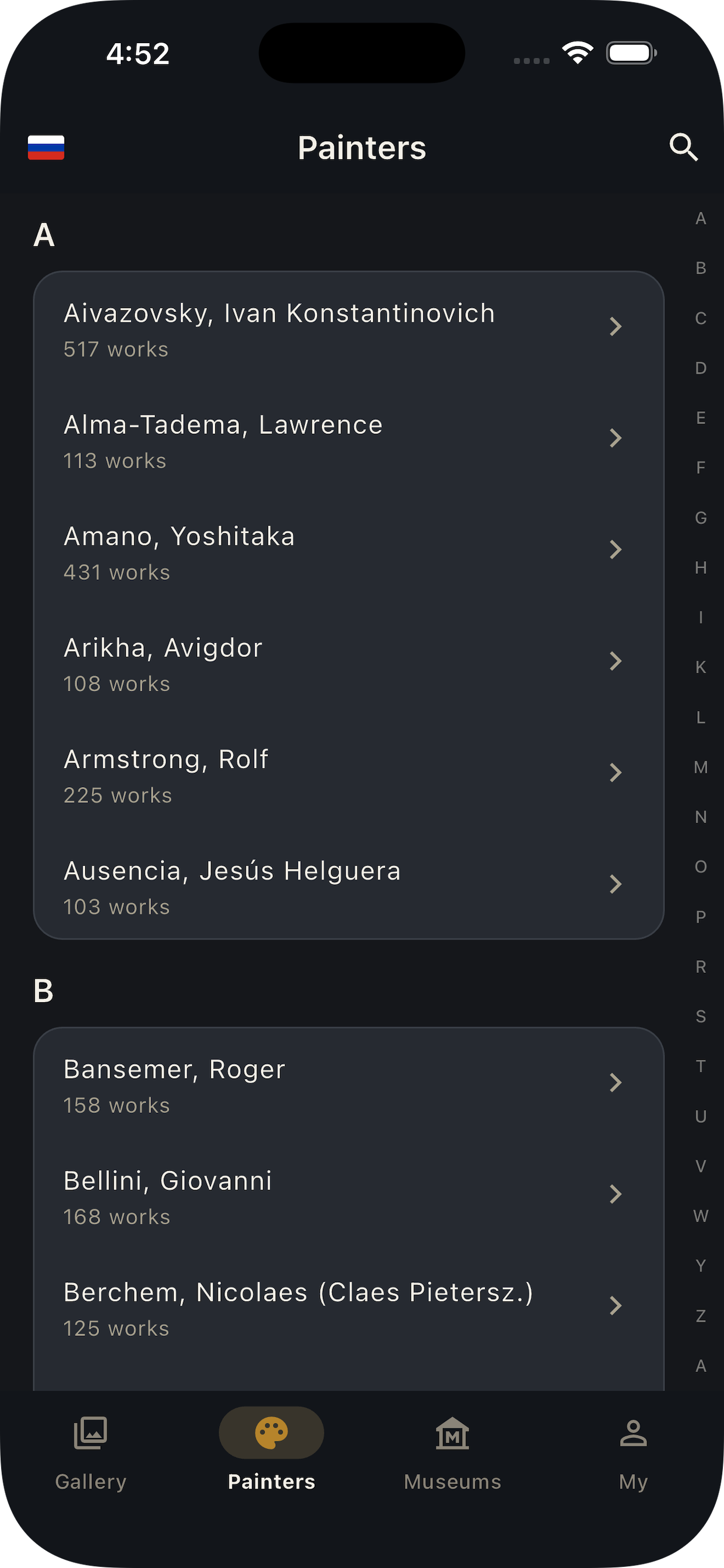
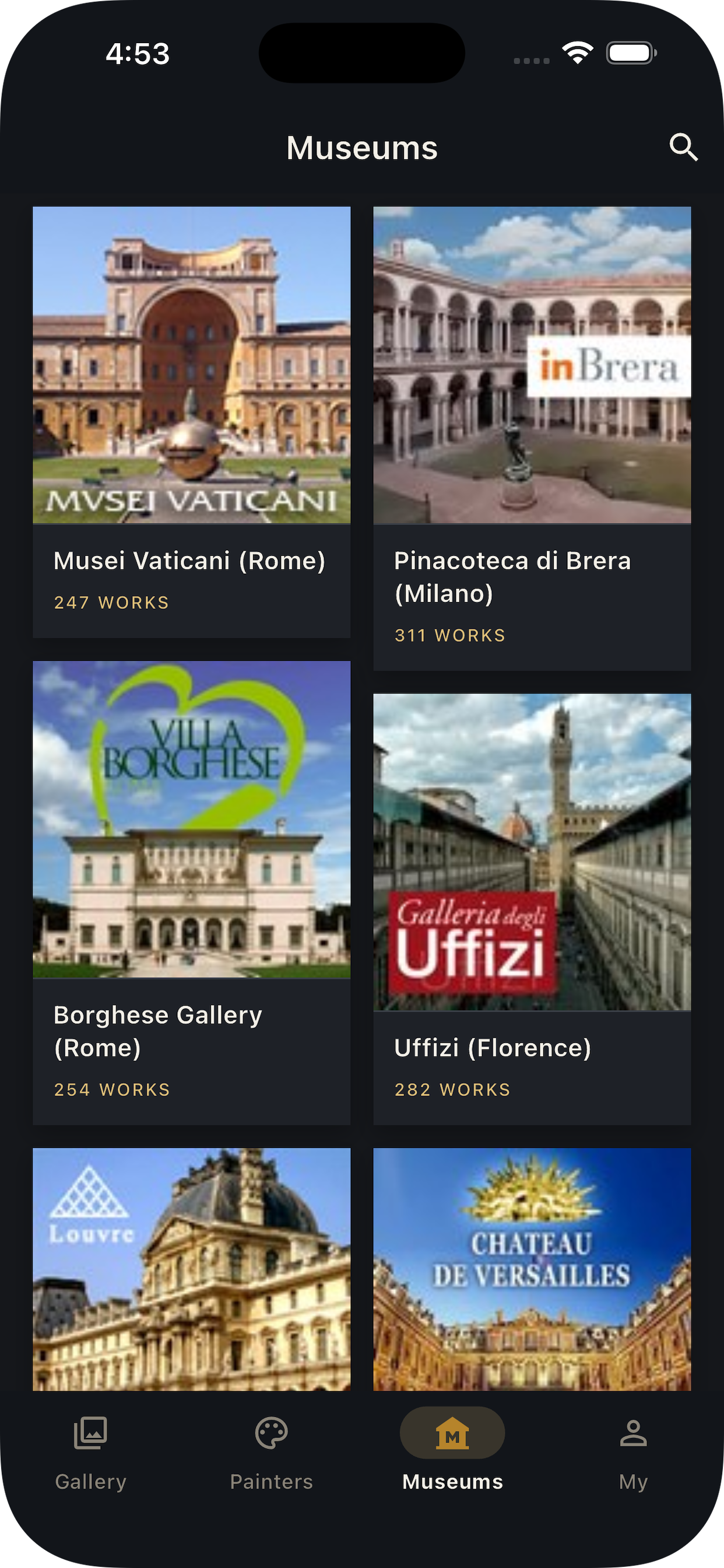
Painters & museums
Discover works through an A–Z of painters, or wander the collections of the world's greatest museums.
Build your collection
Save your favorite works with a single tap and return to your personal gallery anytime.
Made for viewing
A clean, museum-inspired interface with full Light and Dark mode, so the art always takes center stage.
Take a look inside
We're here to help
Questions, feedback, or need a hand? Reach out and we'll get back to you.
For any support inquiries, please contact us at:
douglassmaster001@126.comIs Paintings free to use?
Yes. You can browse the collection, view artworks, and build your favorites right after installing.
Why won't some images load?
Artwork images are streamed from the web, so a stable internet connection is required. If an image doesn't appear, check your connection and pull down to refresh.
Can I save artworks to my device?
Yes. Open any artwork, tap to view it full-screen, and use the download button to save it to your Photos.
How do I switch between Light and Dark mode?
Go to the “My” tab → Appearance, and choose Light, Dark, or System to match your device.